

Overview
DApp Publish deploys your project’s frontend to Netlify. If your UI depends on a smart contract, deploy the contract first so the published app points at the correct program and network.Prerequisites
Before you can publish your DApp UI, make sure the following requirements are met:- Netlify is connected (required): Noah needs access to create and update a Netlify site for your DApp.
- Your DApp UI is ready: you can preview it inside Noah.
- (Recommended) Your smart contract is deployed: publish the contract first if your UI needs an on-chain Program ID.
Publish your DApp
Open the Publish modal
Open your DApp in Noah (so you can see the live preview), then click Publish in the top-right to open the Publish Your DApp modal.Make sure the Web App tab is selected (not Smart Contract).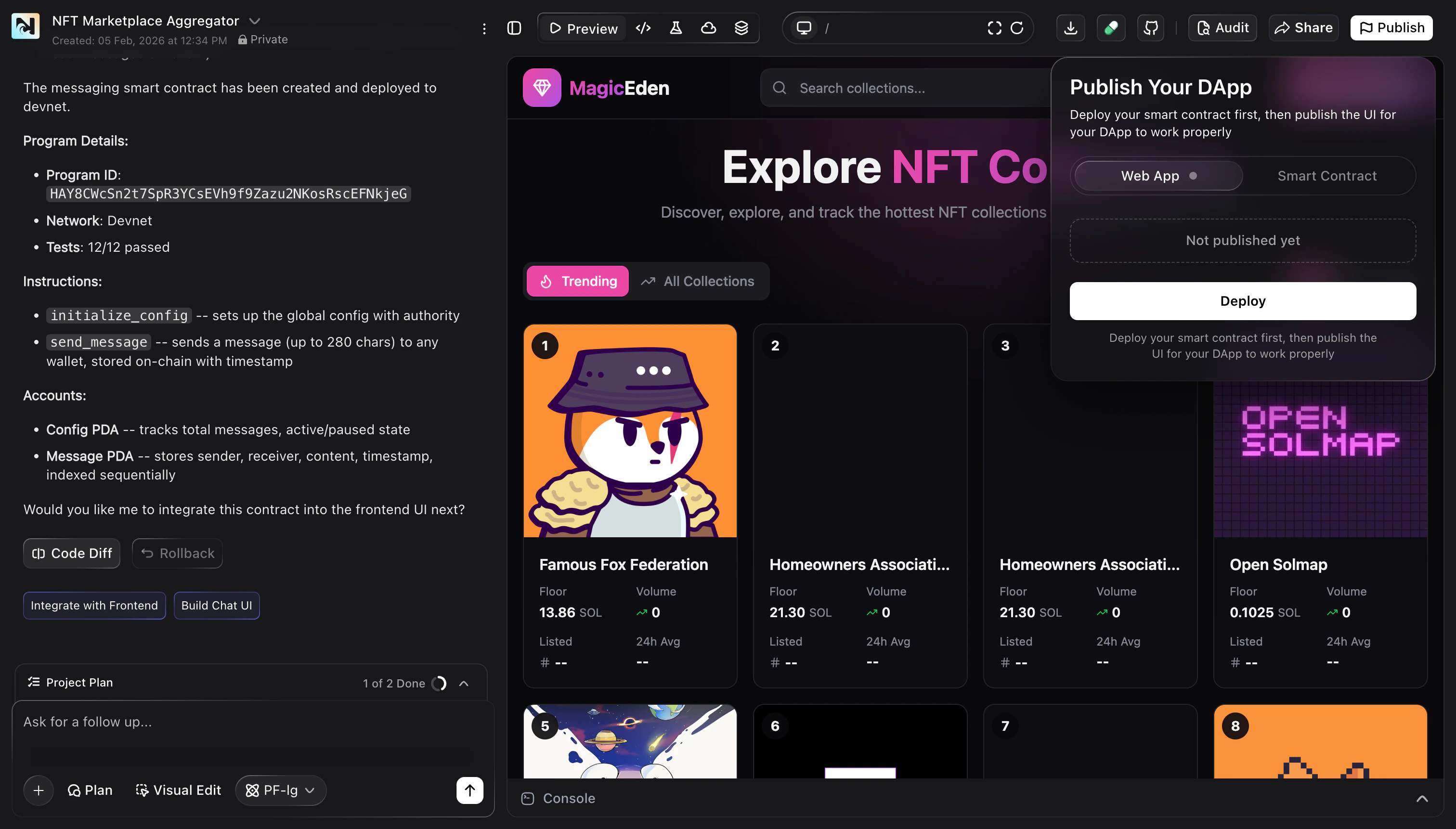
Confirm your Netlify connection
At the top of the Web App tab, confirm your Netlify account is connected and ready.If Netlify is not connected, follow the in-app prompts to sign in and authorize Noah (this is a one-time setup). Then return to the Publish Your DApp modal.
Deploy your web app
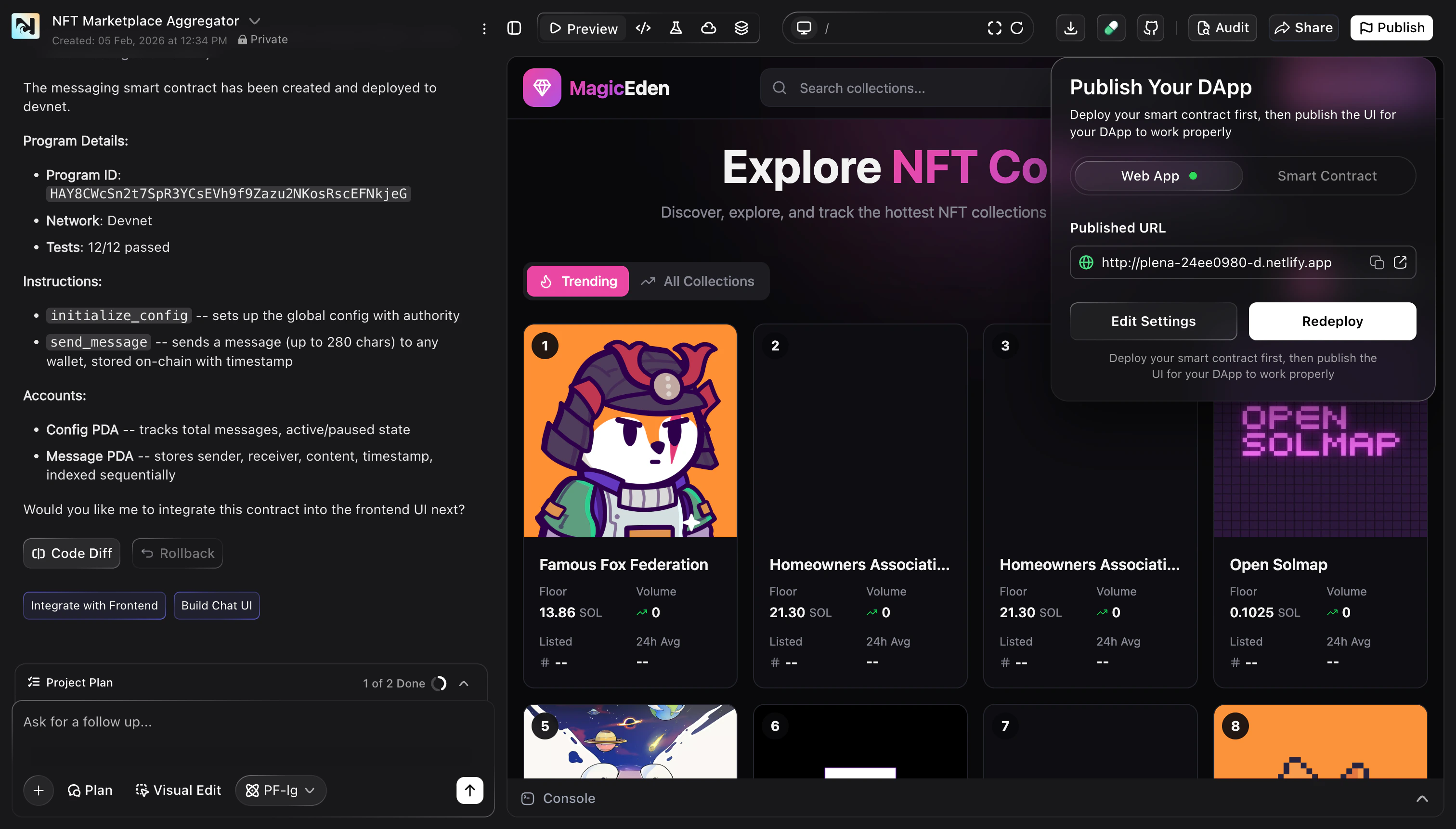
Click Deploy to start the deployment.Noah will build your frontend and deploy it to a Netlify site in your connected Netlify account.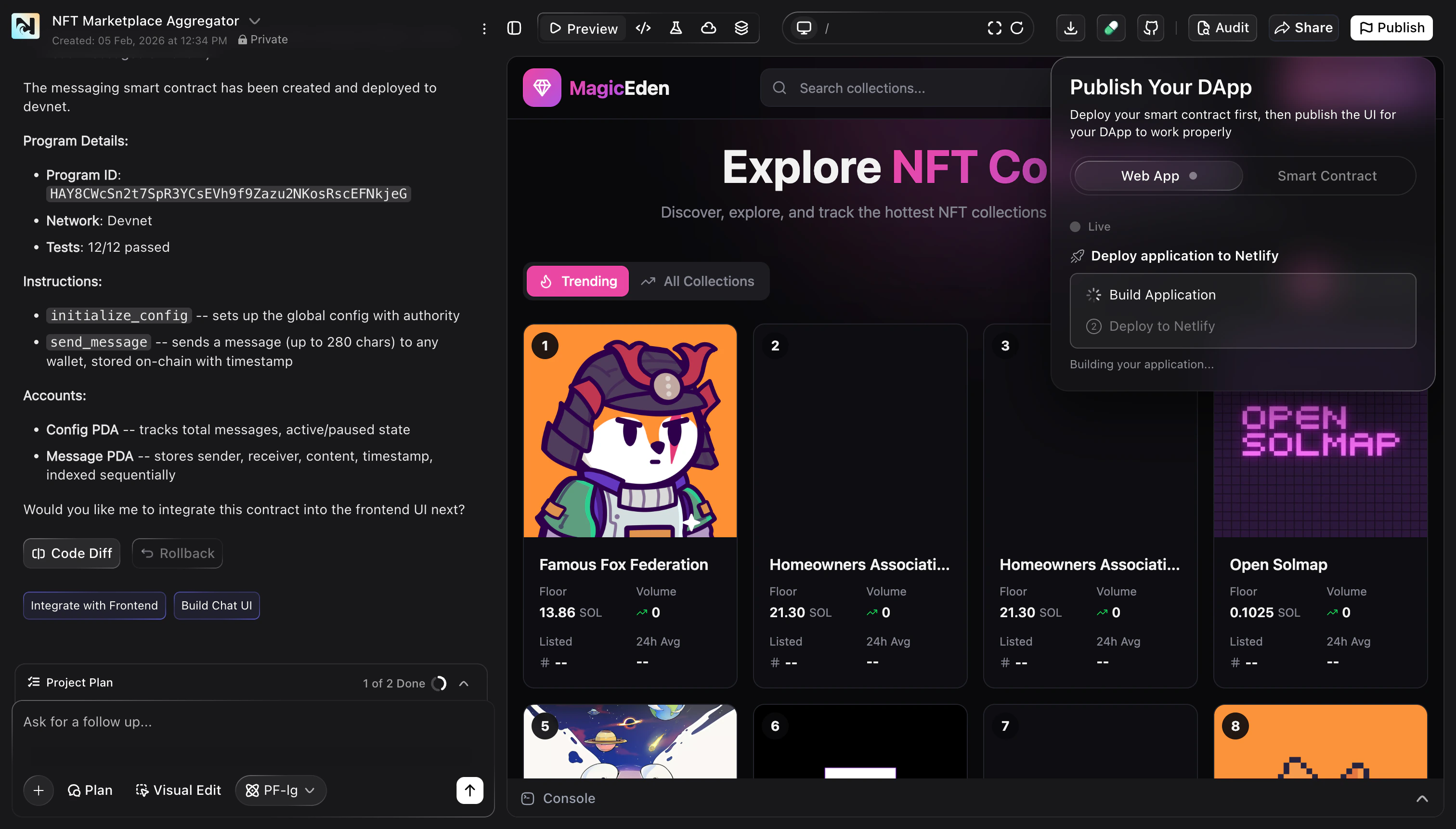
Troubleshooting and tips
Netlify isn’t connected
Netlify isn’t connected
If you see Netlify prompts or connection errors, complete the in-app Netlify connection flow, then return to Publish Your DApp and try again.
Build errors
Build errors
If the build fails, check the build output in Noah, fix the underlying issue
in your project, then click Deploy again.
The URL doesn’t show the latest changes
The URL doesn’t show the latest changes
After redeploying, Netlify may take a short moment to serve the latest
version. Refresh, or open the Published URL in a new tab after a few seconds.
The DApp can’t reach the smart contract
The DApp can’t reach the smart contract
Confirm the contract is deployed to the same network your UI is using, and that your app references the correct Program ID.