

@ in the chat input opens the mentions picker above the editor, grouped into three categories:
- Files & Folders – project files and directories
- Integrations – connected tools and services
- Docs – framework and language documentation
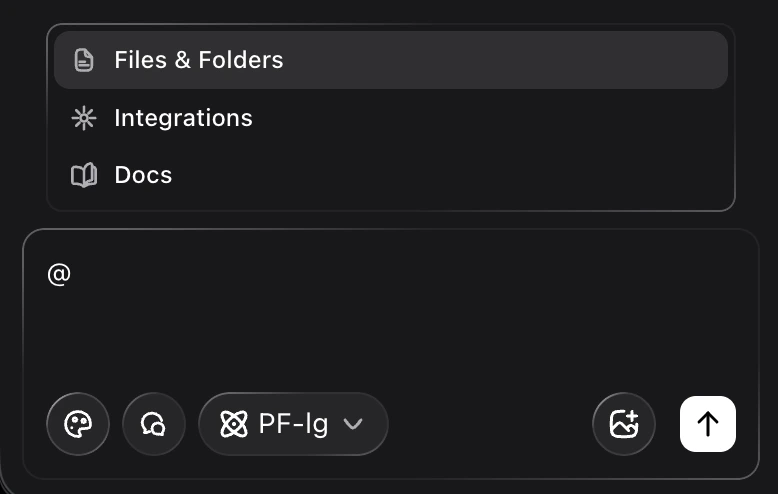
Files & Folders mentions
Use the Files & Folders tab to point the assistant at specific parts of your codebase. When you:- Type
@in the chat input. - Choose Files & Folders.
- Scroll or type to filter for the file or folder you want.
- Press Enter on an item.
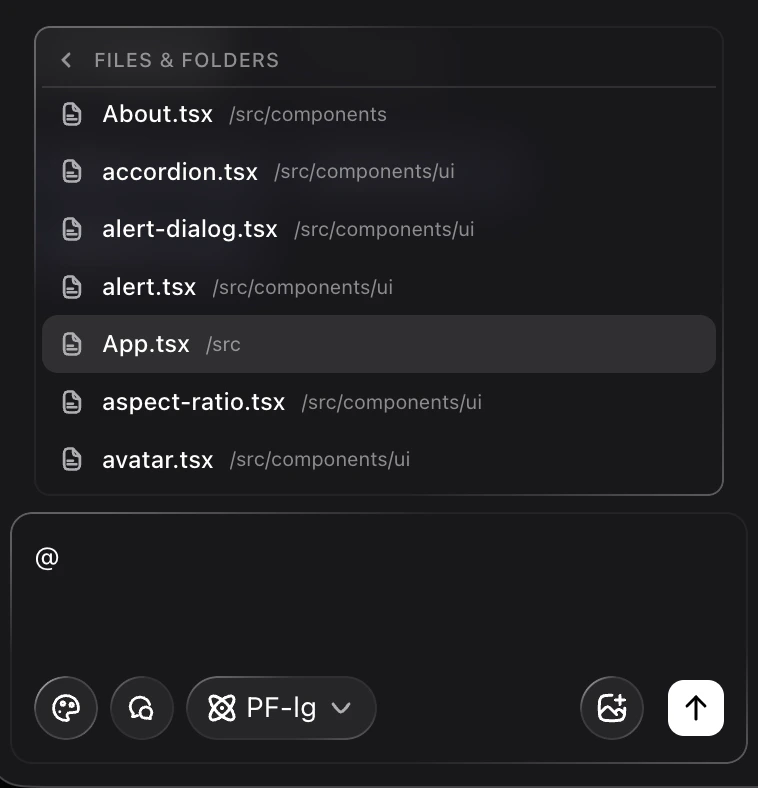
- “@
App.tsxRefactor this component to use a layout component rather than inline styles.” - “@
/src/components/uiReview these components for accessibility issues.”
Docs mentions
Docs mentions let you pull in external documentation sources so the assistant can answer with up‑to‑date, framework‑specific guidance. From the@ picker, switch to the Docs tab to see available documentation sets, such as:
- React
- TypeScript
- Next.js
- Tailwind CSS
- Node.js
- Python
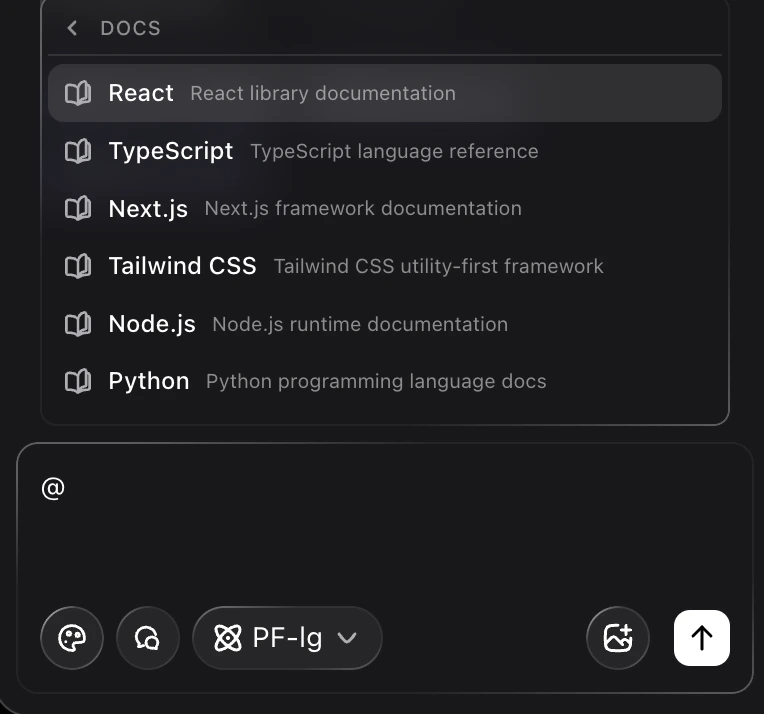
- “@React @TypeScript Show an example of a strongly‑typed React context for theme settings.”
- “@Next.js Help me convert this API route to the new app router style.”
Integrations mentions
The Integrations tab in the mentions picker surfaces any tools and services you have connected to Cursor (for example, design tools or other external systems, depending on your setup). Mentioning an integration:- Inserts a token for that integration into your message.
- Tells the assistant to use that tool or data source when formulating its response, when supported.
Behavior and shortcuts
Mentions are designed to be fast to add from the keyboard:- Open picker: type
@in the chat input. - Filter: keep typing to narrow the list by name or path.
- Navigate: use ↑ / ↓ to move through results.
- Select: press Enter to insert the highlighted mention.
- Close: press Esc to dismiss the picker.
- Mentions only apply to the current message; add them again if you start a new thread or follow‑up message that needs the same context.
- You can insert multiple mentions (files, folders, docs, and integrations) in a single message.