

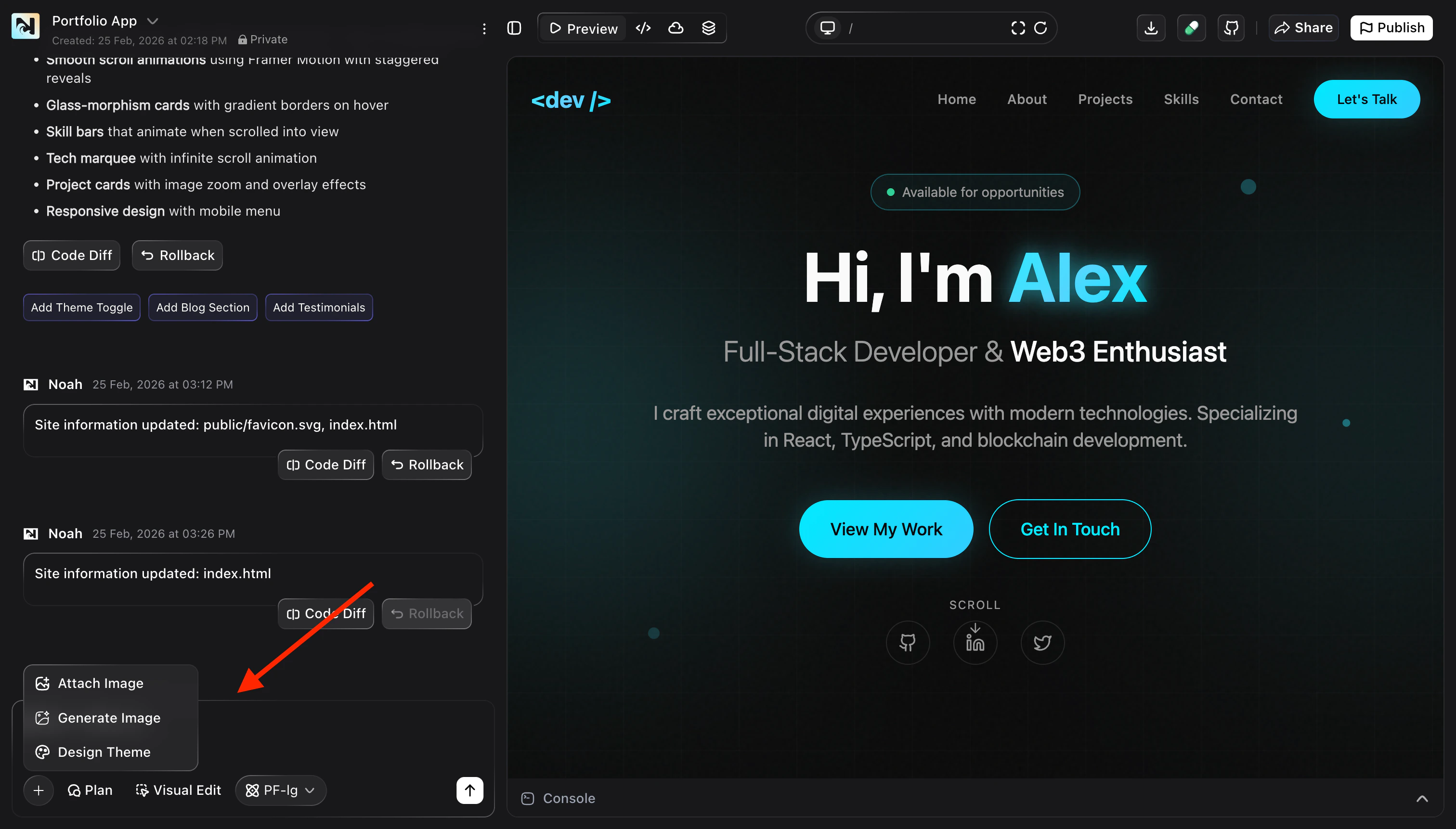
Why use Design tools
Design tools make it easy for anyone on your team — designers, marketers, and non-technical teammates — to confidently adjust your app’s look and feel.- Consistent branding: Apply a shared theme so colors, typography, and spacing stay aligned across pages.
- Faster iteration: Change layouts and copy visually instead of editing code or writing long prompts.
- Accessible for all roles: Give non-developers a safe way to tweak UI without breaking logic.
- Live preview: See every visual change instantly in the preview before you publish.
Themes
Themes define your project’s core design system: colors, fonts, border radius, shadows, and spacing tokens that Noah uses across components. With Themes, you can:- Apply a ready‑made Noah theme to quickly give your project a polished base.
- Generate a new theme from your existing project to unify styles.
- Customize tokens for colors, typography, and spacing from a single panel.
- Share themes across projects so multiple apps stay on the same brand.
Visual Edit
The Visual Edit tab lets you change individual sections directly on the page. Instead of editing JSX or CSS, you interact with the live preview. Core capabilities include:- Select and edit components: Click any section, card, or button to adjust text, colors, or layout.
- Tweak spacing and alignment: Adjust padding, margins, and alignment to fine-tune how content fits.
- Swap images: Replace hero images, logos, or illustrations by uploading files or pasting URLs.
- Make focused layout changes: Reorder sections, resize columns, or hide blocks you no longer need.
Quick start
Follow these steps to start using Design tools on a Noah project.Open Design tools
In your project, click Design next to Preview. The Design panel opens with tabs for Visual Edit and Themes.
Pick how you want to work
Switch to Themes when you want to change the global look and feel (brand
colors, fonts, spacing). Switch to Visual Edit when you want to adjust a
specific page or component.
Make changes and preview
Apply a theme or edit elements in Visual Edit. Your changes appear live in the
preview so you can quickly compare different options.
What’s next
Visual Edit
Learn how to visually tweak individual sections, layouts, and content on any page.
Themes
Dive deeper into customizing your global design system, tokens, and reusable themes.