

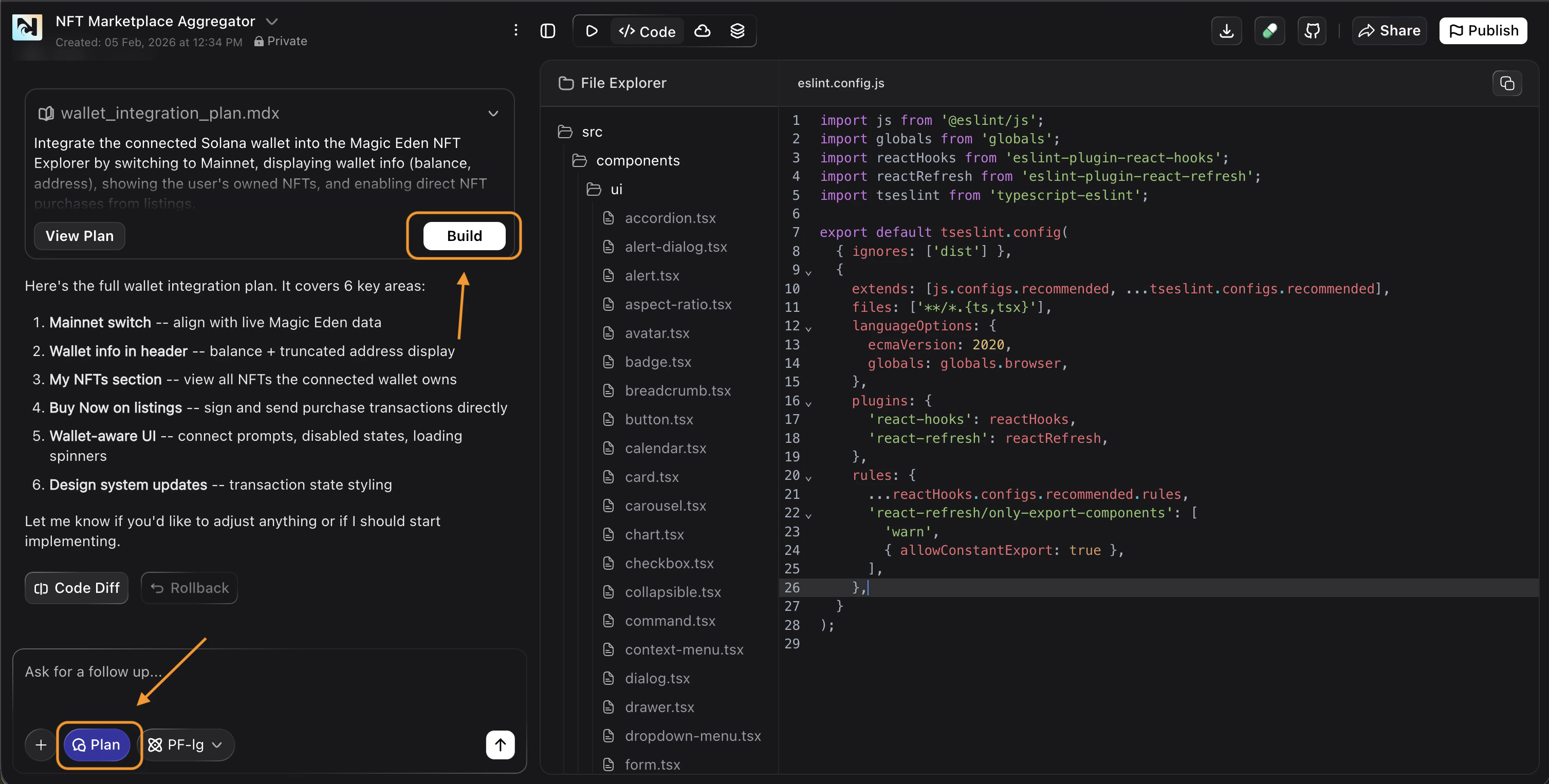
Choose a modeNoah has two modes:
- Plan mode → think through the problem, explore options, and decide on an approach
- Agent mode → implement changes and verify the outcome
Overview
Plan mode is Noah’s planning and reasoning mode, designed for moments when thinking, exploration, or clarity is more valuable than immediate execution. It can reason across multiple steps and inspect files, logs, or other relevant project context as needed. In Plan mode, you can explore ideas, investigate issues, and reason about changes before any code is written. Noah often asks clarifying questions to better understand your goals and constraints. When there is a clear implementation to propose, Noah creates a formal plan that you can inspect, edit, and refine. Plan mode never modifies your code. Every message in Plan mode deducts one credit.What Plan Mode Is For
You can use Plan mode to:- Explore product or feature ideas before committing to a direction
- Ask questions about your codebase or existing behavior
- Investigate bugs, errors, or confusing behavior safely before making code changes
- Compare multiple approaches and understand tradeoffs
- Design architecture or smart contract schemas
- Understand the impact of potential changes before making them
How to Use Plan Mode
You can use Plan mode in two ways:- Start in Plan mode when beginning a new project or exploring an idea
- Switch to Plan mode at any point during development to pause execution and think
Activate Plan Mode
Click Plan next to the message input, then describe what you want to explore or decide. Be specific about what you wantWhen Plan Mode Creates a Plan
Plan mode does not always produce a structured implementation plan. A plan is created only when there is a clear implementation to propose. If a plan is generated, it appears in a dedicated Plan view as a readable, structured document. You can open it in full screen to review the entire approach before anything is implemented. A plan typically includes:- A high-level overview of the approach
- Key decisions, assumptions, and constraints
- Components, data models, and smart contract functions
- Step-by-step implementation sequencing
- Optional diagrams such as schemas, flows, or architecture
- Edit the plan directly as markdown to add constraints, remove steps, or rewrite sections
- Approve the plan when you are satisfied with the approach
- Noah switches to Agent mode
- Implementation begins based strictly on the approved plan
Plans and Persistence
When you approve a plan, the latest approved version is saved to your project. This represents the current plan that Agent mode will implement, and you can inspect it like any other project file. Previous plans are not lost. They remain available in your chat history and can be reopened in the Plan view for reference or comparison, even though only the most recent approved plan is active. This allows you to:- Iterate on ideas over time
- Compare different approaches
- Re-plan safely as requirements evolve
- Help new collaborators understand the reasoning behind implementations
FAQ
Does Plan mode change my code?
Does Plan mode change my code?
No. Plan mode never modifies your code. It is purely for thinking, exploring, and planning. Code changes only happen in Agent mode after you approve a plan.
How many credits does Plan mode use?
How many credits does Plan mode use?
Every message in Plan mode deducts one credit from your account.
Can I switch between Plan mode and Agent mode?
Can I switch between Plan mode and Agent mode?
Yes. You can switch between the two modes at any time. Use Plan mode when you need to think or explore, and Agent mode when you’re ready to implement.
What happens when I approve a plan?
What happens when I approve a plan?
Noah automatically switches to Agent mode and begins implementing the changes described in your approved plan.
Can I edit a plan before approving it?
Can I edit a plan before approving it?
Yes. You can ask questions or request changes in the chat input before approving.