

Browse templates
You can access templates from the left sidebar.- Open the Templates section under Resources
- Browse cards for different categories like Full Stack Dapp, Smart Contract, Mobile, and Games
- Use filters at the top to sort by Most Cloned and choose a specific chain with All Chains
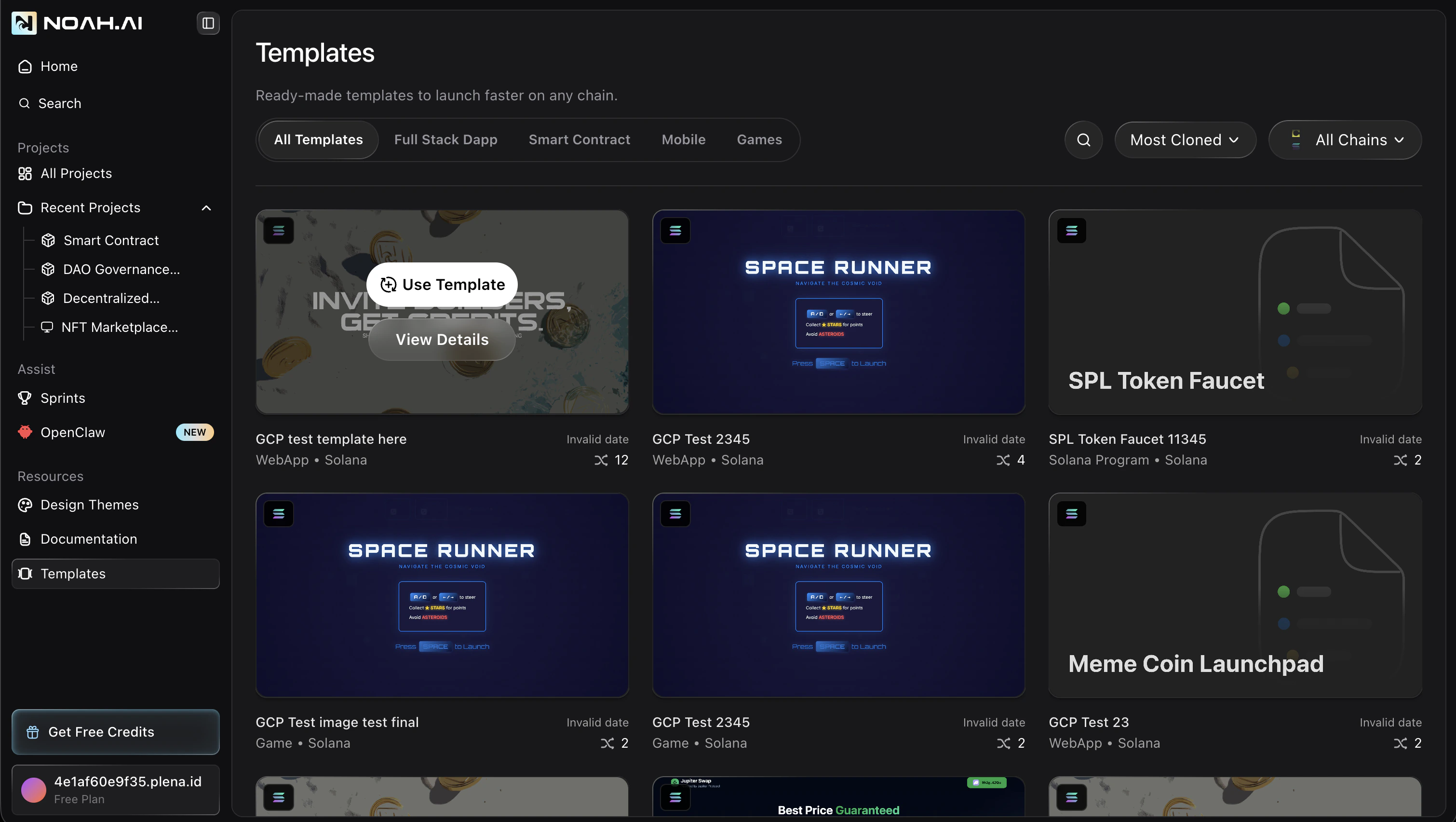
- Use Template — start cloning immediately
- View Details — open the full template details view
View template details
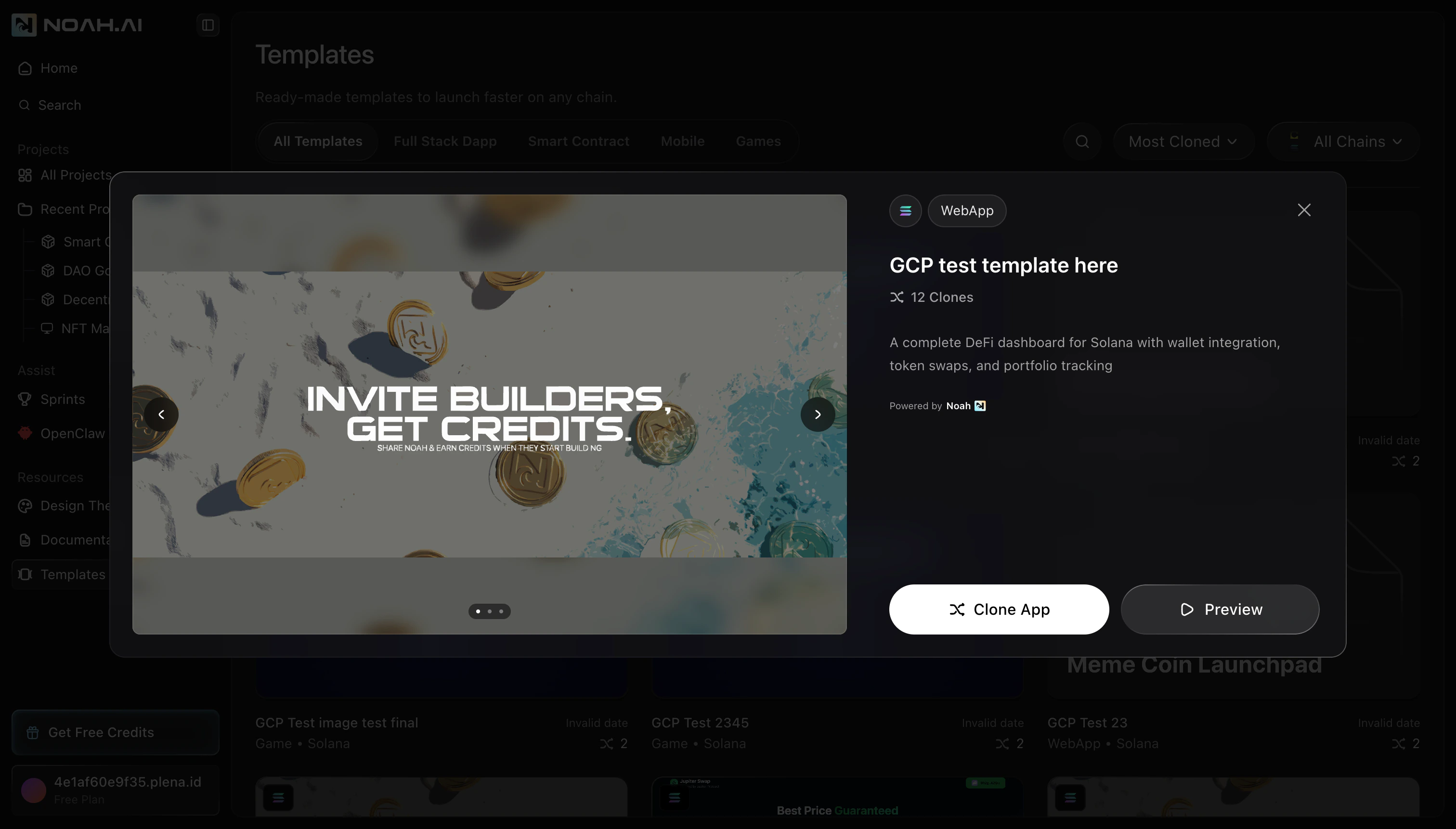
Click View Details (or click the card itself) to open the template details dialog. Here you can:- See a large preview carousel of the template
- View the template name, type (for example WebApp), and clone count
- Read a short description of what the template includes
- Choose between Clone App and Preview
Clone and preview
Open the Templates gallery
From the left sidebar, click Templates to open the gallery. Browse or filter until you find a template that matches what you want to build.
Review template details (optional)
Hover over a card and click View Details to see screenshots and a
description. Use Preview to open a live preview of the template in a new
tab.
Clone the template into your workspace
When you are ready, click Clone App (from the details dialog) or Use
Template (from the card) to create a new project based on that template.
When to use templates
Templates are especially helpful when you want to:- Prototype quickly — get a working app or contract running in minutes
- Learn best practices — study how existing templates structure code, components, and integrations
- Reuse proven setups — start from a layout, design system, or smart contract pattern that already works
FAQ
Does cloning a template change the original?
Does cloning a template change the original?
No. Cloning creates a new, independent project in your workspace. Changes you make do not affect the original template or other users.
Can I clone the same template multiple times?
Can I clone the same template multiple times?
Yes. You can clone a template as many times as you like to create different
projects or variations.
Do templates receive updates after I clone them?
Do templates receive updates after I clone them?
No. Once cloned, your project is separate from the source template. Future template updates do not automatically change your cloned project.