Noah includes a built-in AI image generator that lets you create custom images directly inside your project — no need for external tools.
How to Access
Click the + button in the chat input bar and select Generate Image from the menu.
 This opens the Image Generation panel with two tabs: Generate and Library.
Generate Tab
The Generate tab is where you create new images. Describe what you want in the prompt field, configure your settings, and hit Generate.

AI Models
Choose from the available models using the dropdown:
| Model | Description |
|---|
| Noah Image Gen | Noah’s built-in image generation model |
| Google Nano Banana | Google-powered image generation model |
Aspect Ratio
Pick the size that fits your use case:

| Ratio | Resolution | Best For |
|---|
| 16:9 Wide | 1920 × 1080 | Hero banners, backgrounds |
| 4:3 Standard | 1600 × 1200 | General-purpose images |
| 1:1 Square | 1024 × 1024 | Profile pictures, icons, social posts |
| 9:16 Portrait | 1080 × 1920 | Mobile screens, stories |
Background
Choose whether your image has a solid background or a transparent one:

- Background — standard image with a full background
- Transparent — removes the background (useful for logos, stickers, overlays)
Each image generation costs credits. Check your balance before generating.
Your Library
Switch to the Library tab to browse all images you’ve previously generated. Hover over any image to see quick actions.
 Each image includes:
- Export to Chat — send the image back to the chat for follow-up prompts
- Copy — copy the image to your clipboard
- Download — save the image to your device
- Fullscreen — view at full resolution
Using Generated Images in Chat
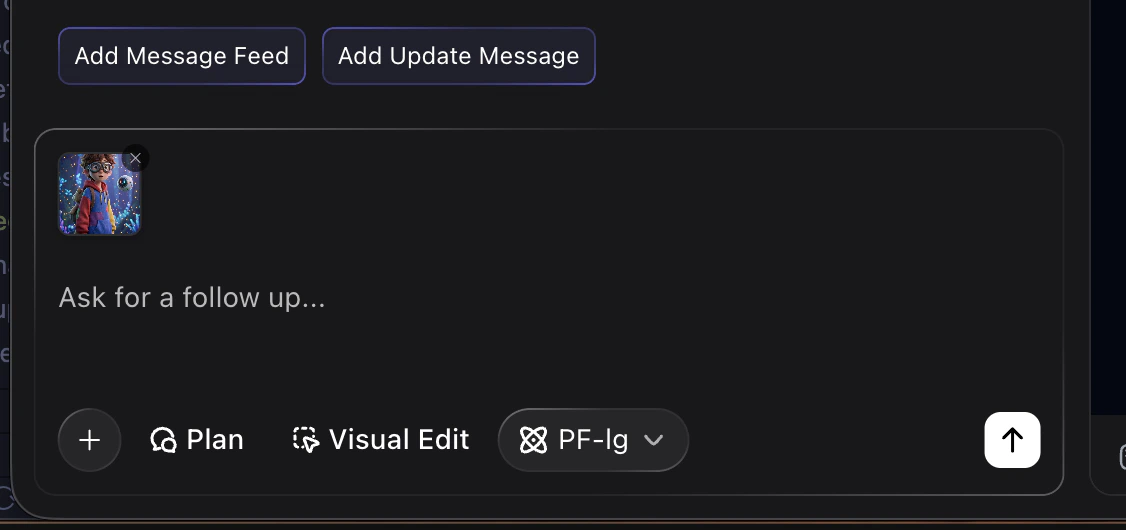
After exporting an image from your Library (or right after generating), it appears as a thumbnail in your chat input. You can then ask Noah to use it in your project — for example, as a hero image, background, or app icon.