

/. They give you a fast way to ask Cursor for specific types of help without having to phrase a long natural-language prompt.
When you type / in the chat input, Cursor opens a command palette above the editor. From there you can browse, filter, and run commands grouped by category.
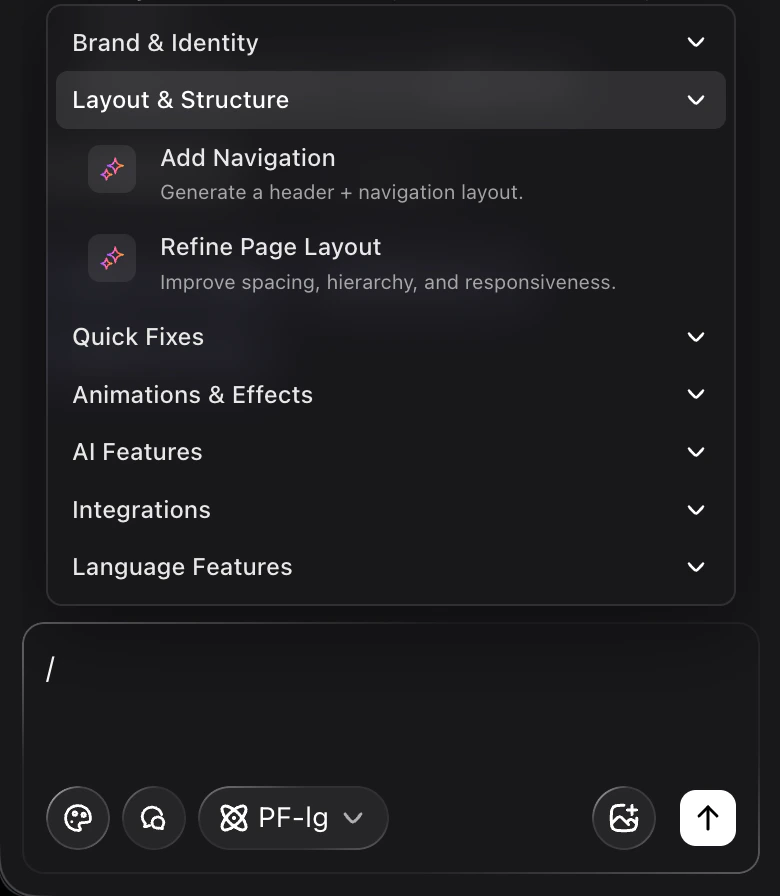
Command categories
The command palette organizes commands into high-level categories that match common workflows:-
Brand & Identity
Focused on shaping the tone, style, and overall identity of your project’s UI and content. -
Layout & Structure
Commands that help you organize components on the page, create navigation, and improve layout hierarchy.- Add Navigation - Generate a header and navigation layout based on your current code and design direction.
- Refine Page Layout - Suggest improvements to spacing, hierarchy, and responsiveness for the current page or component.
-
Quick Fixes
Fast, targeted actions like cleaning up code, fixing obvious issues, or applying small improvements. -
Animations & Effects
Commands that introduce motion, transitions, and visual polish while keeping performance and accessibility in mind. -
AI Features
Higher-level AI flows and capabilities that go beyond a single prompt, such as multi-step improvements or feature scaffolding. -
Integrations
Commands that work with connected tools and services (for example, design or data integrations), depending on what is configured in your environment. -
Language Features
Language- and framework-specific commands that help with typing, refactors, and idiomatic patterns.
Running a command
To run a command from the chat input:- Type
/at the beginning of the input. - Use the keyboard to:
- Type a few characters to filter commands by name.
- Use ↑ / ↓ to move through the filtered list.
- Press Enter to run the highlighted command.
- Immediately perform the action (for example, propose code edits or layout changes), or
- Insert a structured instruction into the chat so you can add more context before sending.
Examples and workflows
Here are a few ways to combine commands with mentions for richer context:-
Refine a specific page layout
- Mention the file:
@App.tsx - Run
/Refine Page Layout - Ask: “Make the hero section denser above the fold but keep the overall visual hierarchy.”
- Mention the file:
-
Add navigation based on existing routes
- Mention your routes or layout folder:
@/src/app - Run
/Add Navigation - Ask: “Generate a top navigation bar that links to the main sections of the app.”
- Mention your routes or layout folder:
-
Polish motion while staying accessible
- Mention a component:
@/src/components/ui/Button.tsx - Run a command from Animations & Effects
- Ask: “Add subtle hover and focus states that meet contrast guidelines.”
- Mention a component:
/ commands alongside @ mentions lets you give the assistant both clear intent (via the command) and precise context (via the mentions) in a single flow.