

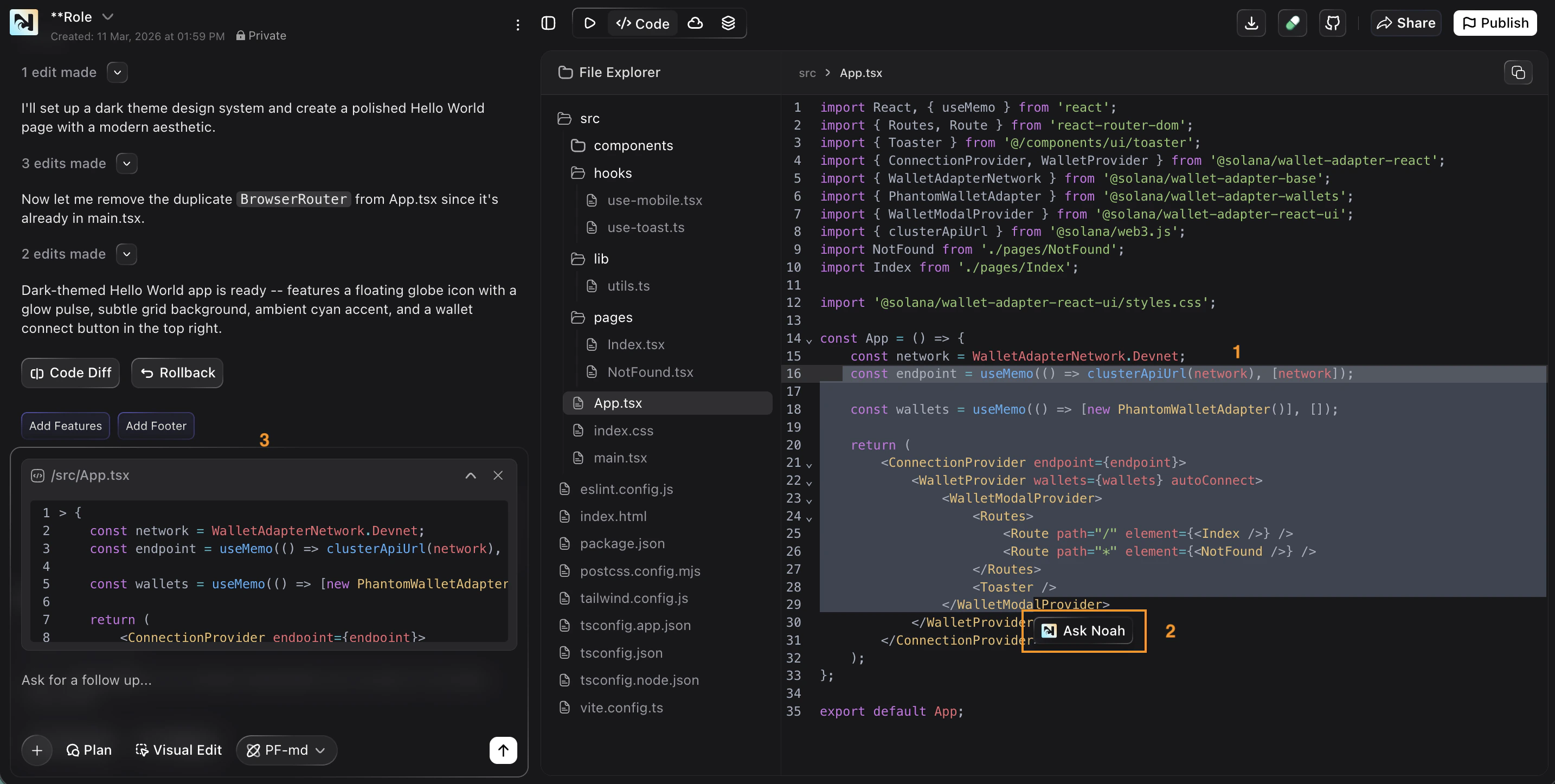
- Code Editor — View and edit your code directly. Highlighted sections show recent changes. Click Ask Noah on any line to get AI help on specific code.
- File Explorer — Browse your project’s full file structure
- Chat Panel — See Noah’s edits, use Code Diff to review changes and Rollback to revert. Quick actions like Add Features and Add Footer are available at the bottom.
Live Preview
When you build a web app, Noah shows a live preview so you can see every change instantly. The preview updates in real time as you iterate with prompts or edit code directly. From the preview, you can:- See your full web app running in the browser
- Interact with buttons, forms, and navigation
- Test wallet connections and blockchain interactions
- View your app at different screen sizes
Console & Error Detection
Noah includes a Console panel at the bottom of the preview that captures runtime errors and logs. When something goes wrong, Noah detects it automatically.
Cannot Preview Your Code?
If an error occurs while trying to run the preview, Noah shows a clear error dialog with two options:- Open Console — view the full error details and logs to understand what went wrong
- Fix with AI — let Noah automatically diagnose and fix the issue for you
What Happens When You Click Fix with AI
When you click Fix with AI, the error is automatically sent to the chat. Noah reads the error, identifies the root cause, edits the affected file, and confirms the fix — all without any manual input.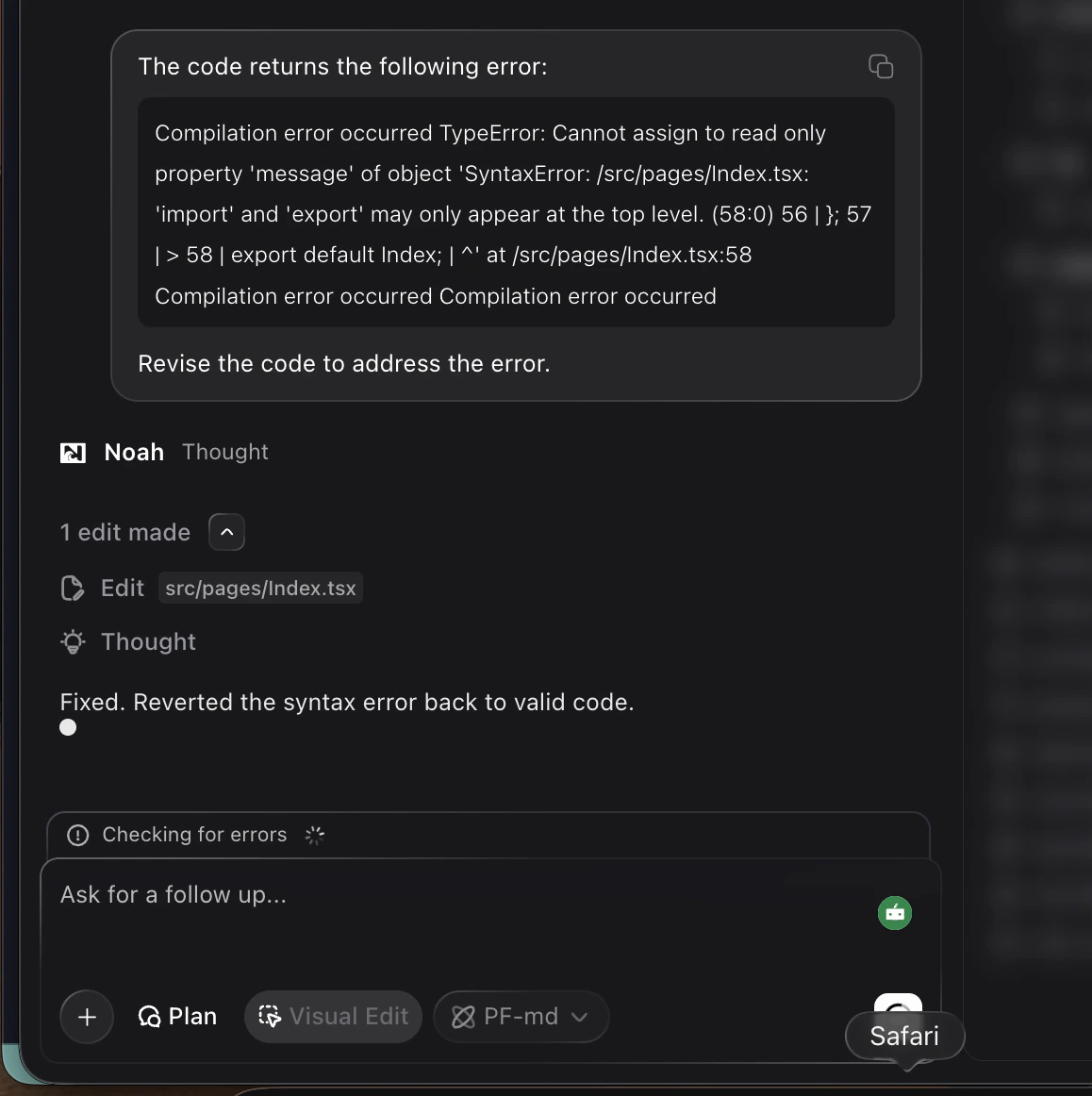
- The error is sent to chat — “The code returns the following error: Compilation error occurred…”
- Noah thinks and identifies the issue in
src/pages/Index.tsx - Makes 1 edit — “Fixed. Reverted the syntax error back to valid code.”
- Runs Checking for errors to verify the fix worked
What You Can Debug
Noah’s preview and console tools help you catch and fix common issues:- Build errors — syntax issues, missing imports, or broken dependencies
- Runtime errors — crashes, undefined variables, or failed API calls
- Smart contract integration issues — wallet connection problems, transaction failures, or incorrect program calls
- UI/UX issues — layout problems, broken links, or missing components
How Debugging Works
Build or Edit Your App
Describe what you want or make changes in the code editor. Noah updates the preview in real time.
Code Diff & Rollback
After Noah makes changes, you can:- Code Diff — review exactly what was changed before accepting
- Rollback — revert to the previous version if the change didn’t work as expected
Best Practices
Test frequently
Test frequently
Check the preview after each major change. Catching issues early is faster than debugging a chain of changes.
Use Fix with AI for quick fixes
Use Fix with AI for quick fixes
For common errors like missing imports or typos, Fix with AI usually resolves the issue instantly.
Check the Console for details
Check the Console for details
When Fix with AI doesn’t resolve the issue, open the Console to see the full error stack trace. Share the error details with Noah in the chat for a targeted fix.
Test smart contract integrations on Devnet
Test smart contract integrations on Devnet
Always connect to Devnet when testing wallet and contract interactions. This prevents real token loss while debugging.
FAQ
Does the preview update automatically?
Does the preview update automatically?
Yes. The preview updates in real time as you make changes through prompts or the code editor.
What does Fix with AI do?
What does Fix with AI do?
It analyzes the error from the Console, identifies the root cause, and applies a fix to your code automatically.
Can I test wallet connections in the preview?
Can I test wallet connections in the preview?
Yes. You can connect a wallet (like Phantom) in the preview and test blockchain interactions directly.
Can I rollback changes?
Can I rollback changes?
Yes. After Noah makes edits, you’ll see a Rollback option to revert to the previous version.