

What Are Buckets?
Buckets are containers that hold your files inside Supabase Storage. Think of them as top-level folders.- Files are stored at paths inside a named bucket.
- Buckets are private by default, but you can make them public.
- Noah does not store your files — it connects your app to your Supabase bucket and handles the logic.
View Your Buckets
Open your project and click the Cloud tab in the toolbar. In the left sidebar, click Storage. You’ll see all your existing buckets with their names and last updated dates.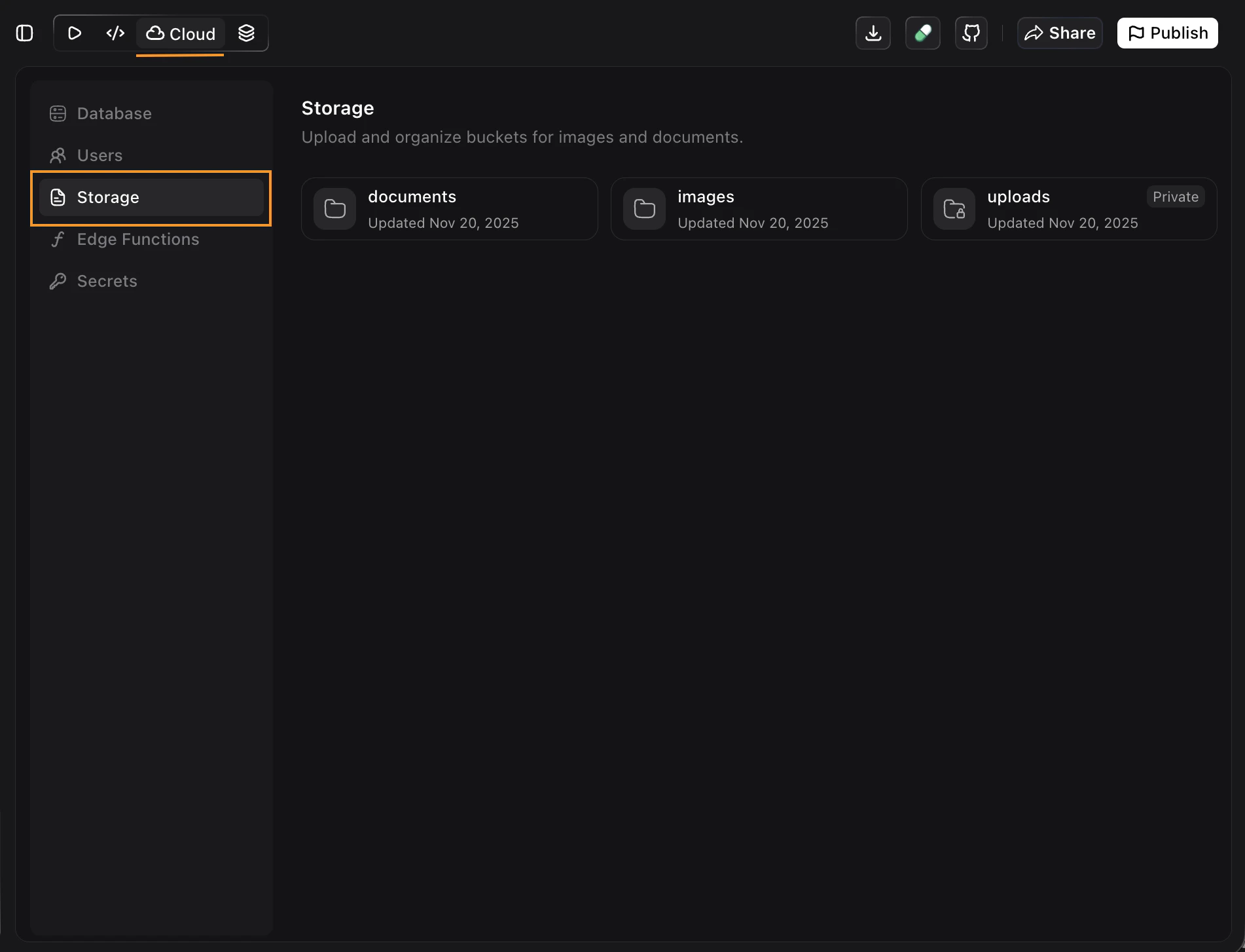
Create a Bucket
Noah automatically creates a bucket when a feature needs file storage. You can also create and connect buckets by asking Noah in chat. Example prompts:
“Create a public Supabase bucket called user-uploads for profile images under 10 MB.”
“Create a private bucket named documents for storing PDF reports.”
Noah will:
Apply restrictions
Sets file type restrictions (e.g., only images or documents) and file size limits if specified
Use Buckets in Your App
Once a bucket is connected, you can:- Upload files — Let users upload images, documents, or media from your app
- Display content — Show uploaded files directly in your UI
- Control access — Set public or private access based on your needs
| Use Case | Prompt |
|---|---|
| Profile avatars | Let users upload profile avatars. Store images in Supabase Storage and display them on the profile page. |
| Document uploads | Add a file upload form that saves PDFs to the documents bucket and lists them in a table. |
| Image gallery | Create an image gallery page that displays all images from the images bucket. |
| Private files | Upload invoices to a private bucket and only show them to the logged-in user who uploaded them. |
Access Control
- Private buckets — Files are only accessible through signed URLs. Noah manages this automatically.
- Public buckets — Files are accessible via direct URLs. Good for assets like logos or public images.
Best Practices
- Name wisely — Use lowercase, hyphenated names like
user-uploadsorreports-2025to avoid errors - Set size limits — Mention file size limits in your prompt to prevent oversized uploads
- Separate by purpose — Use different buckets for different file types (e.g.,
imagesfor photos,documentsfor PDFs) - Use private for sensitive files — Keep user documents and personal files in private buckets
Troubleshooting
Files don't appear in the UI
Files don't appear in the UI
If uploaded files are not showing in your app, ask Noah:
“Show uploaded images from user-uploads in the profile screen.”
If Noah shows a script or function popup, click Push to Supabase to apply the changes.Upload fails or file is rejected
Upload fails or file is rejected
Check your bucket’s file type and size restrictions. You can ask Noah:
“Update the user-uploads bucket to accept PNG, JPG, and GIF files up to 10 MB.”
Can't access files from a private bucket
Can't access files from a private bucket
Private buckets require signed URLs. Make sure your app is generating signed URLs for file access. Ask Noah:
“Generate signed URLs for files in the documents bucket so logged-in users can download them.”