

When Do You Need This?
You only need to update redirect URLs if you are using a custom domain (e.g.,https://app.yourbrand.com). If your app is published on a default Noah domain (*.app.trynoah.ai), everything is handled automatically.
Add Your Custom Domain as a Redirect URL
Open the Authentication settings
In your Supabase dashboard, go to the Authentication section in the left sidebar.
Update the Site URL
Replace the default
http://localhost:3000 with your custom domain. This is the fallback redirect when no other URL matches.For example: https://app.yourbrand.comAdd your custom domain to Redirect URLs
Under Redirect URLs, click Add URL and enter your custom domain. Wildcards are supported.For example:
https://**.yourbrand.com**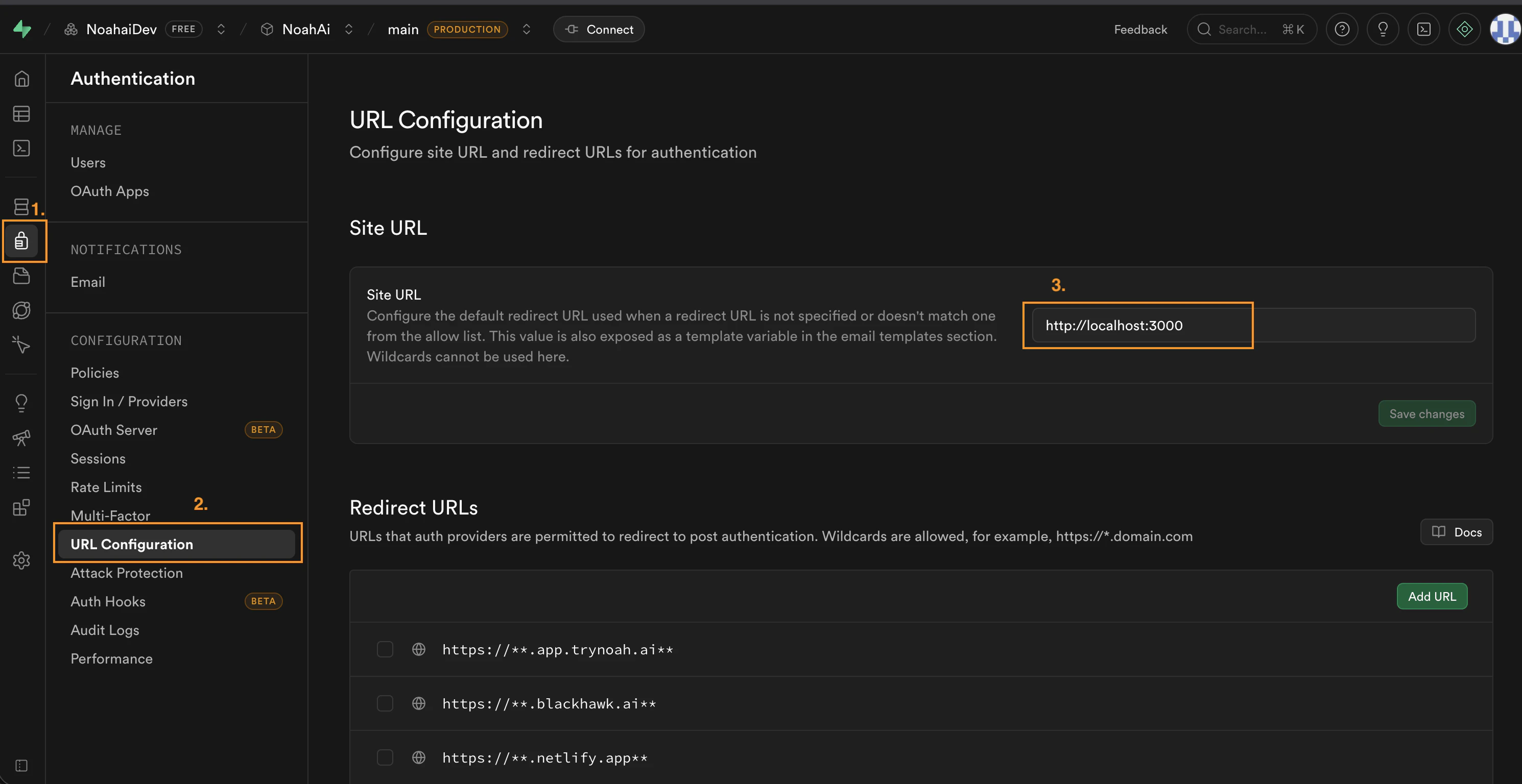
Troubleshooting
Link still goes to localhost
Link still goes to localhost
Clicking a confirmation or reset link opens
localhost:3000 instead of your custom domain.- Double-check that the Site URL field is set to your custom domain and begins with
https:// - Remove any trailing slashes — they can interfere with redirects
Link opens the app but user is not logged in
Link opens the app but user is not logged in
The link loads your app, but the user is not authenticated.
- Make sure the redirect URL exactly matches your custom domain, including protocol (
https://) and no trailing slash - Confirm your Noah app is connected to the same Supabase project where the URL is configured