

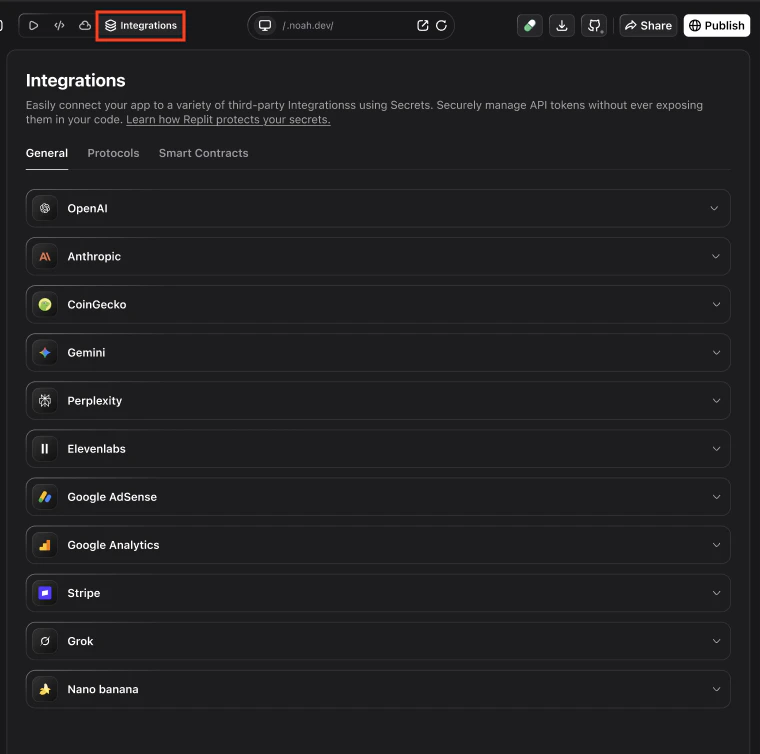
{{adsense_client_id}}. After AdSense is enabled in the Noah UI, follow the steps below to place the script and components in your app.
CRITICAL prerequisites
Before you integrate AdSense into a Noah-generated React application, you need your AdSense Publisher ID.- Make sure you have an approved (or pending) AdSense account.
- Ask the user (or provide yourself) the AdSense Publisher ID.
What you can use it for
- Monetize blogs and content sites – Add ads alongside articles, docs, and landing pages.
- Earn passive revenue – Get paid for impressions and clicks on your pages.
- Automatic ad selection – Let Google choose relevant ads based on your content and visitors.
Before you start
You will need:- A Google account
- A Google AdSense account (approved, or in review)
- A site or domain generated or hosted from Noah that you can submit to AdSense
How Noah helps wire AdSense into your app
Once AdSense is connected in the Integrations tab and your site is approved, Noah can handle the boilerplate script setup for you. You can describe what you want in natural language and let Noah make the changes in your codebase. Example prompts:Add Google AdSense to my blog layout using my adsense_client_id and place a responsive banner below each article title.Insert a Google AdSense ad unit in the sidebar of my docs pages and make sure it is mobile‑friendly.Create a reusable AdSense React component and use it on my homepage hero and at the end of blog posts.
Connect AdSense to your Noah app
Connecting AdSense has two main steps:- Set up and verify your site in AdSense.
- Add AdSense code to your Noah project and choose where ads appear.
Create or sign in to Google AdSense
Go to Google AdSense and sign in with your Google account.
- If you do not have an AdSense account yet, follow the sign-up flow.
- If you already have an account, you can add a new site for your Noah app.
Add your site and request approval
In AdSense:
- Go to the Sites section.
- Click Add site and enter the URL where your Noah app is hosted.
- Follow the instructions to verify ownership (this may involve adding a code snippet to your site or DNS, depending on Google’s current flow).
- Submit your site for review and approval.
Get your AdSense code or ad unit code
Once your site is added:
- In AdSense, go to Ads → Overview to generate Auto ads code, or
- Go to Ads → Ad units to create specific ad units (e.g., banner, rectangle, in-article).
- Copy the script snippet or ad unit code that Google provides.
Add AdSense to your Noah project
In Noah:
- Open your project and go to the Integrations tab (see the screenshot at the top of this page).
- Find the Google AdSense integration card.
- Paste your
{{adsense_client_id}}(Publisher ID) into the input field and save. - Optionally, add a short label or note so teammates know which AdSense account is connected.
Place ad units in your pages
After the integration is connected:
- Decide where ads should appear (for example, sidebar, between article sections, or below content).
- In your Noah project chat, ask Noah to insert or update the AdSense components/snippets in those spots for you (for example, “Add an AdSense unit below each blog post title using my connected AdSense integration.”).
- Make sure the placements Noah adds do not disrupt the main reading or interaction flow.
Best practices for AdSense with Noah
- Prioritize readability – Keep ads away from critical actions and primary content flows.
- Use responsive units – Prefer responsive ad units so layouts look good across devices.
- Start with a few placements – Add 1–3 strategic ad placements and measure performance before adding more.
- Respect AdSense policies – Follow Google’s policies on content, click behavior, and ad placement.
Next steps
- Monitor your AdSense dashboard for impressions, clicks, and estimated earnings.
- Experiment with different ad placements to balance revenue and user experience.
- Combine AdSense with Google Analytics to see which pages drive the most monetizable traffic.
FAQ
I added AdSense but no ads are showing. What should I check?
I added AdSense but no ads are showing. What should I check?
- Confirm that your site has been approved in AdSense (check the Sites section).
- Make sure the AdSense script and ad unit code are present in the deployed version of your Noah app.
- Give it time—ads may take a while to appear on newly added or low-traffic sites.
- Check that your content follows AdSense policies and is not restricted.
Can I use AdSense and Google Analytics together in Noah?
Can I use AdSense and Google Analytics together in Noah?
Yes. Many sites use Google Analytics to understand traffic and engagement, and AdSense to monetize that traffic. You can add both integrations to the same Noah-generated app.
Where should I place ads in a Noah app?
Where should I place ads in a Noah app?
Good starting points include:
- A sidebar on desktop layouts
- Between sections of long-form content
- Below the main content on a page
Do I need a minimum amount of traffic to use AdSense?
Do I need a minimum amount of traffic to use AdSense?
AdSense does not require a strict traffic minimum, but sites with very low traffic will earn little or no revenue. It is worth enabling AdSense once your Noah-generated site begins to attract regular visitors.