

Track your Noah app’s traffic with GA4.Google Analytics (GA4) is Google’s web analytics platform for tracking page
views, user behavior, conversions, and traffic sources.When you connect Google Analytics to Noah, you can measure how people find and
use your app and wire up additional events and conversions from chat or your
code.Prerequisites:
- A Noah account with a project you can deploy.
- A Google Analytics account (free to create).
- A live URL for your app (tracking is most accurate on deployed projects).
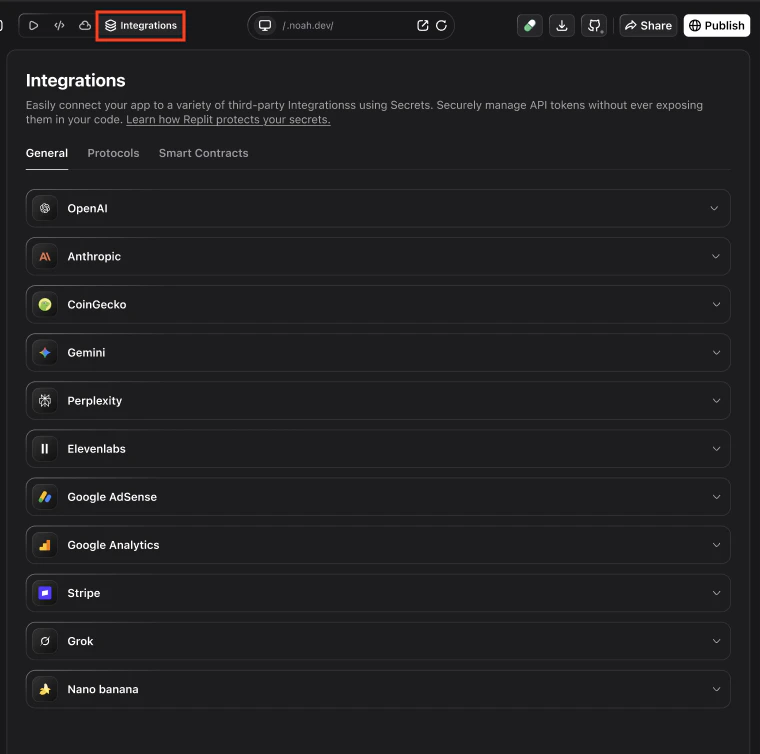
{{ga_measurement_id}}, and save. After it is connected in the Noah UI, continue with the steps below to configure tracking in your app.
CRITICAL prerequisites
Before you integrate Google Analytics with a Noah-generated React application, you need your GA Measurement ID.- Configure your Google Analytics settings.
- Ask the user (or provide yourself) the GA Measurement ID.
What you can use it for
See which pages people actually use
See which pages people actually use
Measure basic traffic and engagement across your Noah app: which screens get the most visits,
how long people stay, and where they came from.Prompt Noah with something like:
Measure key outcomes
Measure key outcomes
Treat important actions—signups, trial starts, or form submissions—as conversion events so you
can see which flows and campaigns actually work.Prompt Noah with something like:
Understand revenue flows
Understand revenue flows
For stores or paid products, send e‑commerce events (views, add‑to‑cart, purchases) so GA4 can
report on revenue, average order value, and top‑performing items.Prompt Noah with something like:
Segment your audience
Segment your audience
Attach user properties such as plan, region, or acquisition source so you can slice every
report by meaningful segments instead of only looking at totals.Prompt Noah with something like:
Track any custom interaction
Track any custom interaction
Define your own GA4 events for things like video engagement, feature usage, or onboarding steps,
and attach extra metadata via event parameters.Prompt Noah with something like:
Before you start
You will need:- A Google account with access to Google Analytics
- A GA4 property for your Noah app
- The Measurement ID for your web data stream (looks like
G-XXXXXXX)
Get your Measurement ID
Your Measurement ID is a unique identifier for your GA4 property. It starts withG- (for example, G-XXXXXXXXXX).
Open the Google Analytics help center to find your Measurement ID.
Connect Google Analytics to Noah
You connect Google Analytics by creating a GA4 property, copying the Measurement ID, and adding it to your Noah project settings. After that, you can simply describe what you want to track in chat and let Noah update your app code for you.Create or open a GA4 property
Go to Google Analytics and either:
- Create a new GA4 property for your Noah app, or
- Open an existing GA4 property you want to use
Create a web data stream and copy the Measurement ID
In your GA4 property:
- Navigate to Admin → Data streams
- Create a Web data stream for your app’s URL (e.g.
https://your-app.example) - In the stream details, find the Measurement ID (format
G-XXXXXXX) - Copy this Measurement ID
Add the Measurement ID in Noah
In Noah:
- Open your project.
- Go to the project Settings → Integrations section.
- Find the Google Analytics integration card.
- Paste your Measurement ID into the input field.
- Click Save to complete setup.
Verify events in GA4 Realtime
Once your updated app is live:
- Open your app in a new browser tab.
- Visit a few pages or screens.
- In Google Analytics, go to Reports → Realtime.
- Confirm that your active user appears and that page_view events are being received.
Track key events and conversions
Noah can emit standard GA4 events (such aspage_view) for you. You can then mark important events as conversions inside GA4.
Common conversions for a Noah app might include:
sign_up– when a user creates an account or profilegenerate_dapp– when a user finishes generating a DAppconnect_wallet– when a user connects a wallet
- Go to Configure → Events
- Find the event you care about (for example,
sign_up) - Toggle Mark as conversion to start treating that event as a conversion
Prompt cookbook
Copy-paste these prompts in Noah after connecting Google Analytics to track common metrics:| Use case | Prompt |
|---|---|
| Page views | Track page views on every route and send them to Google Analytics automatically. |
| Button clicks | Track clicks on the "Sign Up" and "Contact Sales" buttons as GA4 custom events. |
| Form submissions | Send a conversion event to GA4 when users submit the contact form. |
| E-commerce purchase | Track completed purchases with order total, product names, and quantities in GA4. |
| Scroll depth | Track when users scroll past 25%, 50%, 75%, and 100% of the page. |
| Outbound links | Track clicks on external links as GA4 events with the destination URL. |
| Search tracking | Send a search event to GA4 when users use the site search bar, including the query. |
| Video engagement | Track play, pause, and completion events for embedded videos in GA4. |
| UTM attribution | Parse UTM parameters from the URL and forward them to GA4 as campaign data. |
| User properties | Set GA4 user properties for plan type and signup date when users log in to the app. |
Next steps
- Build traffic reports to understand which channels drive the most visitors.
- Use Explorations in GA4 to build simple funnels for your core flows.
- Combine GA4 with AdSense and deployment integrations to see how traffic converts and monetizes.
Tips and limitations
- Tracking is most accurate on deployed projects. Google Analytics may not behave the same on local previews.
- GA4 data has a processing delay. Realtime reports update quickly, but standard reports can take hours to fill in.
- Only GA4 Measurement IDs are supported. IDs start with
G-. Universal Analytics (UA-) is deprecated. - Ad blockers may prevent tracking. Some users run browser extensions that block GA scripts.
- One Measurement ID per project. Each Noah project should use a single GA4 property for clean reporting.
FAQ
Does Noah support GA4?
Does Noah support GA4?
Yes. The integration and examples on this page assume you are using Google Analytics 4 (GA4), which is the current standard version of Google Analytics.
I added my Measurement ID, but I do not see data. What should I check?
I added my Measurement ID, but I do not see data. What should I check?
- Make sure you deployed or published the latest version of your app after configuring Google Analytics in Noah.
- Confirm that the Measurement ID in Noah exactly matches the one shown in GA4.
- Open your app in an incognito window and check Reports → Realtime in GA4 while you browse.
- If your site uses ad blockers or tracking protection, try from a different browser or device.
Can I use Google Analytics together with other analytics tools?
Can I use Google Analytics together with other analytics tools?
Yes. You can use Google Analytics for traffic and marketing insights and another tool (such as Mixpanel, when available) for product analytics and user behavior. They can coexist on the same Noah-generated app.
Where in Noah do I paste my Measurement ID?
Where in Noah do I paste my Measurement ID?
The exact location can vary slightly by project template, but generally you will find Google Analytics under your project Settings or Integrations. Look for a specific Google Analytics or Analytics section and paste the Measurement ID there. If you cannot find it, check the latest Noah UI or internal documentation.
What’s next?
AdSense
Monetize your traffic with Google AdSense display ads.
Netlify
Deploy your project so Google Analytics can start collecting real data.